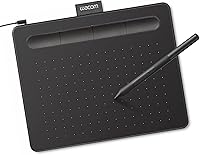
HUION Inspiroy H1060P Graphics Drawing Tablet, 10 x 6.25 in, 12+16 Shortcut Keys, Battery-Free Pen with 8192 Pressure Levels
Reviewed by RateThePick Editorial Team · Updated
The HUION Inspiroy H1060P is a screen-free graphics tablet. You draw on the pad with a pen, and your strokes appear on a connected computer or supported Android device. It offers a roomy 10 x 6.25-inch drawing area, a battery-free pen that never needs charging, 8,192 pressure levels, tilt support, and a generous set of programmable shortcuts. It sits in the budget tier and is aimed at beginners, hobbyists, and artists looking for a larger first tablet or an affordable upgrade.
- Large 10 x 6.25-inch drawing area gives plenty of room for natural strokes
- Battery-free PW100 pen never needs charging
- 8,192 pressure levels and ±60° tilt support for pressure- and angle-sensitive brushes
As an Amazon Associate we earn from qualifying purchases.
Best For
Beginners and hobbyists who want a large drawing surface without a big spend, students and illustrators who like having many shortcut keys for undo, brush size, and tool changes, and anyone moving up from a small tablet who wants more room to make long, relaxed strokes on Windows, macOS, or a supported Android device.
Things to Consider
- Wired-only connection, and the cable can get in the way for some users, especially after rotating the tablet for left-handed use
Score Breakdown
Why We Like It
What Buyers Notice
The H1060P holds a strong average rating across thousands of ratings. Among the owner comments we looked at, a couple of long-time users said they still like the tablet, with one describing roughly six years or more of regular use, and one owner said they upgraded from the smaller H640P specifically for the extra drawing room. A small number of users who ran into stroke-start lag on Windows reported that adjusting driver and Windows Ink settings helped, so it is worth taking a few minutes to set up the driver for your drawing app.
Who Should Buy It
Buy the HUION Inspiroy H1060P if you want a large, affordable pen tablet for drawing, photo editing, or note-taking on a Windows PC, Mac, or supported Android device, and you like the idea of a pen you never have to charge. If you need wireless use, an on-screen drawing experience, or iPad support, consider a different type of tablet.
Detailed Review
What it is. The HUION Inspiroy H1060P is a pen tablet without a screen. It plugs into your computer, and the driver maps the pad to your monitor so pen movements control the cursor and brush. Your artwork appears on the computer or supported Android device, not on the tablet itself. This style takes a short adjustment period, but it is a common and affordable way to start digital drawing.
Drawing area and design. The working area is 254 x 158.8 mm (10 x 6.25 inches), inside a 360 x 240 mm body that is about 10 mm thick and weighs 770 g, according to HUION. Reviewers noted a plastic body with sloped edges and four rubber feet. Mega Pencil described the body as solid-feeling and the surface resistance as comfortable.
Pen and pressure. The PW100 pen uses battery-free electromagnetic resonance (EMR), meaning it draws power from the tablet and never needs charging. HUION lists 8,192 pressure levels, ±60° tilt, 5,080 LPI resolution, a report rate above 220 PPS, and ±0.3 mm accuracy. Pressure lets brush strokes get thicker or darker as you press harder, and tilt lets compatible brushes change with the pen angle. The pen has two side buttons and no rear eraser. In published tests, reviewers found pressure transitions smooth, light strokes easy to make, and line wobble minimal.
Shortcuts. There are two kinds of shortcuts:
- 12 physical keys you press by hand.
- 16 soft keys along the top of the work area that you tap with the pen, not your finger.
Both can be assigned commands such as undo or tool changes in the HUION driver. Opinions on button feel varied between reviewers, with one calling them loose-feeling and another describing crisp clicks.
Compatibility. HUION lists support for Windows 7 or later, macOS 10.12 or later, Android 6.0 or later, and Ubuntu 24.04 LTS. On Linux, the official driver requires X11/Xorg. For Android, your device needs USB OTG support, and phone mode uses a narrower area of roughly 3.9 x 6.25 inches. HUION says phone mode usually activates automatically, and for this model you can select it manually by holding keys 1 and 5 for 3 to 5 seconds. iPhone and iPad are not supported.
Left-handed use. The driver can rotate the tablet orientation, so left-handed artists can flip it around. One reviewer found the angled cable a bit awkward after rotating.
Setup tips. HUION's manual notes that pressure may not work if another tablet driver is installed or if the driver is installed while art software is open. Uninstall old tablet drivers first and close drawing apps before installing.
Warranty. HUION support states a one-year warranty from purchase for orders through its official store or authorized sellers.
Verdict. The H1060P is a practical, budget-friendly tablet that gives you a large surface, a charge-free pen, and lots of shortcut options. It is a sensible pick for a first tablet or for upgrading from a small one.
FAQ
Does the HUION H1060P work on its own like an iPad?
No. It has no screen and must be connected to a computer or a supported Android device. Your drawing appears on that device's display.
Does the pen need charging?
No. The PW100 pen is battery-free, so there is nothing to charge.
Is the H1060P wireless?
No. It connects with the included Micro-USB cable. A USB-C adapter is included in the box.
Do the 16 soft keys work with my finger?
No. The 16 soft keys along the top are tapped with the pen. The 12 physical keys on the side are pressed by hand.
Can I use it with an Android phone?
Yes, with Android 6.0 or later and USB OTG support. Phone mode uses a smaller area of about 3.9 x 6.25 inches. On this model you can switch to phone mode manually by holding keys 1 and 5 for 3 to 5 seconds. iPhone and iPad are not supported.
Can left-handed artists use it?
Yes. The HUION driver lets you rotate the tablet orientation so the shortcut keys sit on the other side.